1
Upload 2–4 reference views
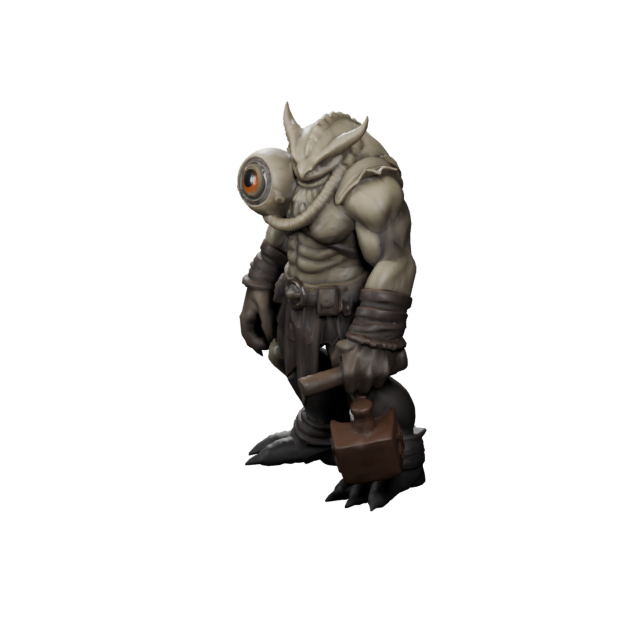
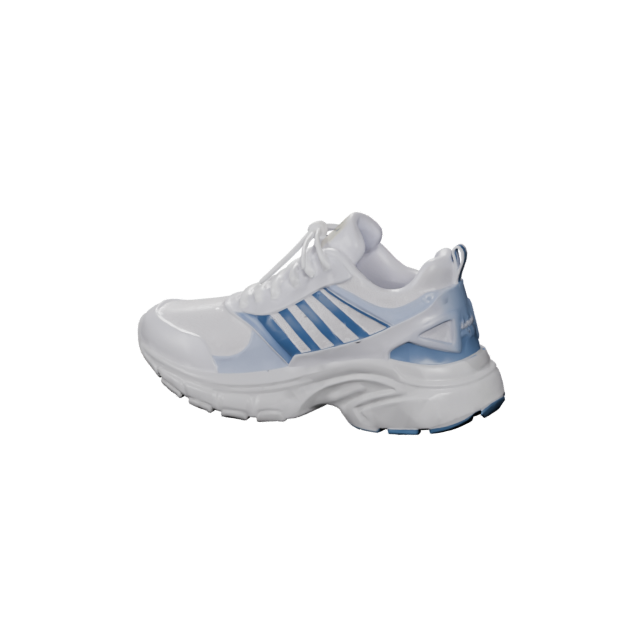
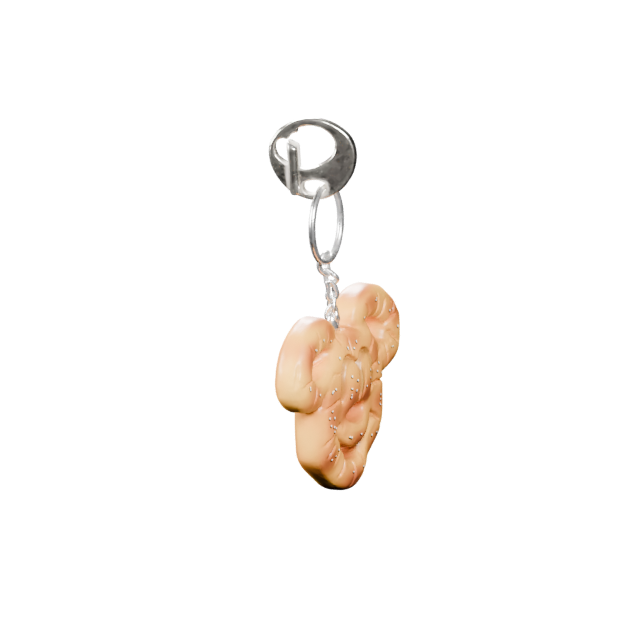
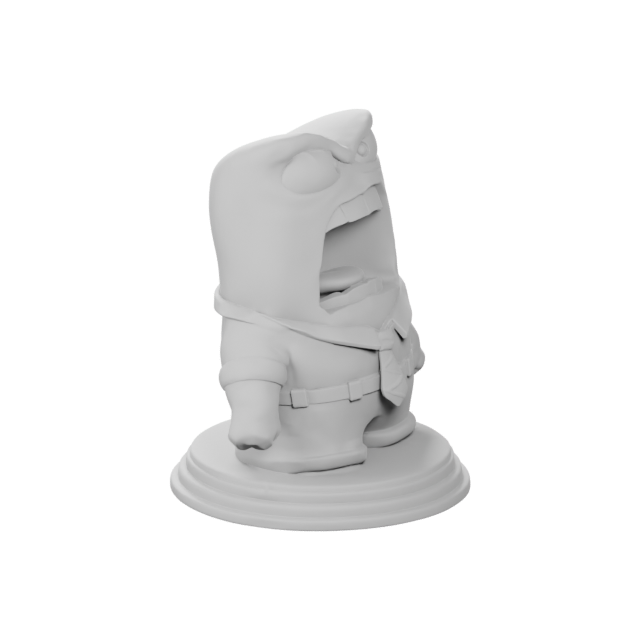
Start with Front View and Left View. Add Back View and Right View when available, and keep the same object, pose, framing, camera height, and lighting across every reference.
 Text3D.ai
Sign in or create your account to generate and manage your AI 3D models.
By continuing, you agree to our Terms and Privacy Policy.
Upload 2–4 views of the same object and generate one consistent 3D asset from front, side, and back references. Text3D.ai combines multi-view image to 3D guidance with PBR materials, adjustable texture and geometry quality, Triangles or Quads topology, and export to GLB, OBJ, FBX, STL, PLY, USDZ, and 3MF.
This generation needs more credits than your current balance. Upgrade your plan or top up credits to start the Multiview to 3D task.
A single image leaves hidden surfaces to AI estimation. The Multiview to 3D AI generator uses 2–4 views of the same object to guide visible proportions, side profiles, rear structure, and surface details from more than one angle.
Choose PBR materials, texture quality, geometry detail, and Triangles or Quads topology to prepare an export-ready starting point for Blender, ZBrush, Unity, Unreal Engine, web 3D, animation, and 3D printing.
Upload Reference Views — Generate 3DUse front, side, and optional rear views to create one 3D asset with professional material, geometry, topology, and export controls.
Start with Front View and Left View. Add Back View and Right View when available, and keep the same object, pose, framing, camera height, and lighting across every reference.
Enable PBR materials, select texture and geometry quality, and choose Triangles for efficient output or Quads for a more editable Blender and ZBrush workflow.
Send the task to My Creations, inspect the result in 3D, and export GLB, OBJ, FBX, STL, PLY, USDZ, or 3MF for editing, engines, web, AR, or printing.
Use the same object, pose, camera height, framing, and lighting across every view. Clean, aligned references give the model stronger guidance than unrelated angles.
Choose Multiview to 3D when an existing object must be guided by several angles. Use Single Image to 3D for a fast one-reference workflow, or Text to 3D when the asset begins as a new idea.
Best when you have front, side, and optional rear views of the same object. Multiple reference angles provide stronger guidance for proportions, silhouettes, visible side details, and rear structure.
Use it for: hard-surface assets, game props, vehicles, products, tools, collectibles, and objects where side consistency matters.
Use Multiview to 3DBest when only one clear reference image is available. It is the fastest visual workflow, while unseen sides and rear surfaces are estimated by the AI.
Use it for: fast prototypes, simple objects, concept images, and early asset exploration.
Go to Image to 3DBest when the asset starts as a new concept rather than an existing object. The result follows the prompt and creative direction instead of matching reference views.
Use it for: original concepts, fantasy props, characters, stylized assets, and rapid ideation.
Go to Text to 3D| Compare | Multiview to 3D | Image to 3D | Text to 3D |
|---|---|---|---|
| Input | 2–4 aligned views of the same object | 1 reference image | Written prompt |
| Reference guidance | Front, side, and rear views can guide visible structure | Hidden areas are AI-estimated | Prompt-driven rather than reference-matched |
| Best for | Existing objects, hard-surface assets, props & products | Fast prototypes from one image | New concepts with no reference |
| Preparation | Capture consistent reference angles | One image, fastest visual start | Describe the asset |
| Export formats | GLB · OBJ · FBX · STL · PLY · USDZ · 3MF | ||
The Multiview to 3D AI generator is designed for creators who need more reference control than a single image can provide, plus material, geometry, topology, and export options for downstream work.
Create reference-guided product assets for interactive viewers, configurators, AR previews, portfolio presentations, and richer ecommerce experiences.
Generate props, vehicles, tools, collectibles, and environment objects as starting points for Unity, Unreal Engine, and real-time pipelines.
Turn multi-angle references into editable 3D starting points for design reviews, visualization, concept development, and rapid iteration.
Create geometry from structured views, then inspect, repair, measure, and export STL or 3MF for prototyping and fabrication workflows.
Export GLB and USDZ assets for web-based 3D, immersive prototypes, augmented-reality previews, and interactive spatial content.
Use Quads for a more editable starting topology, or Triangles for efficient general output before refining materials, topology, UVs, and details.
Create visual 3D representations of artifacts, collections, study objects, and existing designs when several controlled reference views are available.
Turn prop references and design turnarounds into 3D starting points for visual development, layout, previs, animation tests, and VFX planning.
Use Multiview to 3D when matching an existing object from several angles. Use Text to 3D for a new idea, or Image to 3D when only one visual reference is available.
Download GLB, OBJ, FBX, STL, PLY, USDZ, or 3MF for Blender, Maya, 3ds Max, Unity, Unreal Engine, web 3D, AR, animation, design, and 3D printing workflows.
Learn how multi-view references, PBR materials, geometry quality, Triangles or Quads topology, image optimization, and export formats fit into a practical 3D pipeline.
Multiview to 3D is an AI workflow that uses several reference images of the same object from different angles to generate one 3D model. Front, side, and rear views give the model more visual guidance than a single image can provide.
Single Image to 3D works from one reference and estimates the areas it cannot see. Multiview to 3D uses 2 to 4 aligned views, so visible side profiles, proportions, and rear details can be guided by additional references.
You need at least a Front View and Left View. Back View and Right View are optional, but adding them gives the AI more information about asymmetrical details, rear structure, and the opposite side of the object.
Use the same object in the same pose for every image. Keep camera height, focal length, distance, scale, lighting, and framing as consistent as possible, and use a clean background with the full object visible.
Yes. PBR can be enabled when a textured output is selected. PBR materials add richer color response, more realistic material behavior, and natural highlights under different lighting environments.
Triangles are an efficient default for real-time engines, web 3D, and general asset use. Quads provide a more editable topology for Blender, ZBrush, sculpting, retopology, deformation, and animation workflows.
No. Photogrammetry usually reconstructs an object from many overlapping photos and camera-position data. Multiview to 3D is a generative AI workflow designed to create a 3D asset from 2 to 4 structured reference views.
Props, products, tools, furniture, vehicles, collectibles, hard-surface assets, stylized objects, and other subjects with clear silhouettes and visible side details are strong candidates for multi-view generation.
The upload area accepts JPG, JPEG, PNG, WebP, HEIC, HEIF, and AVIF files up to 10MB each. Images of 2MB or larger are optimized in the browser before the generation request is submitted when the browser can decode the format.
Generated assets can be exported as GLB, OBJ, FBX, STL, PLY, USDZ, and 3MF for workflows including Blender, Maya, 3ds Max, Unity, Unreal Engine, web 3D, AR, animation, and 3D printing.
If generation fails and no usable 3D asset is created, the credits used for that failed generation are automatically returned to your account.
Monthly members receive commercial usage rights for generated 3D assets. Annual members also receive commercial usage rights and can download a separate commercial authorization license for each individual 3D asset.
Upload front, side, and optional rear images of the same object. Generate an export-ready 3D asset with PBR materials, adjustable geometry, and your choice of Triangles or Quads topology.